

How the Approval Process Works on Spondise
3 minutes and 18 sec
Share this article

Spondise Team
How the Approval Process Works on Spondise
Draft Review, Final Links, and What Triggers Approvals
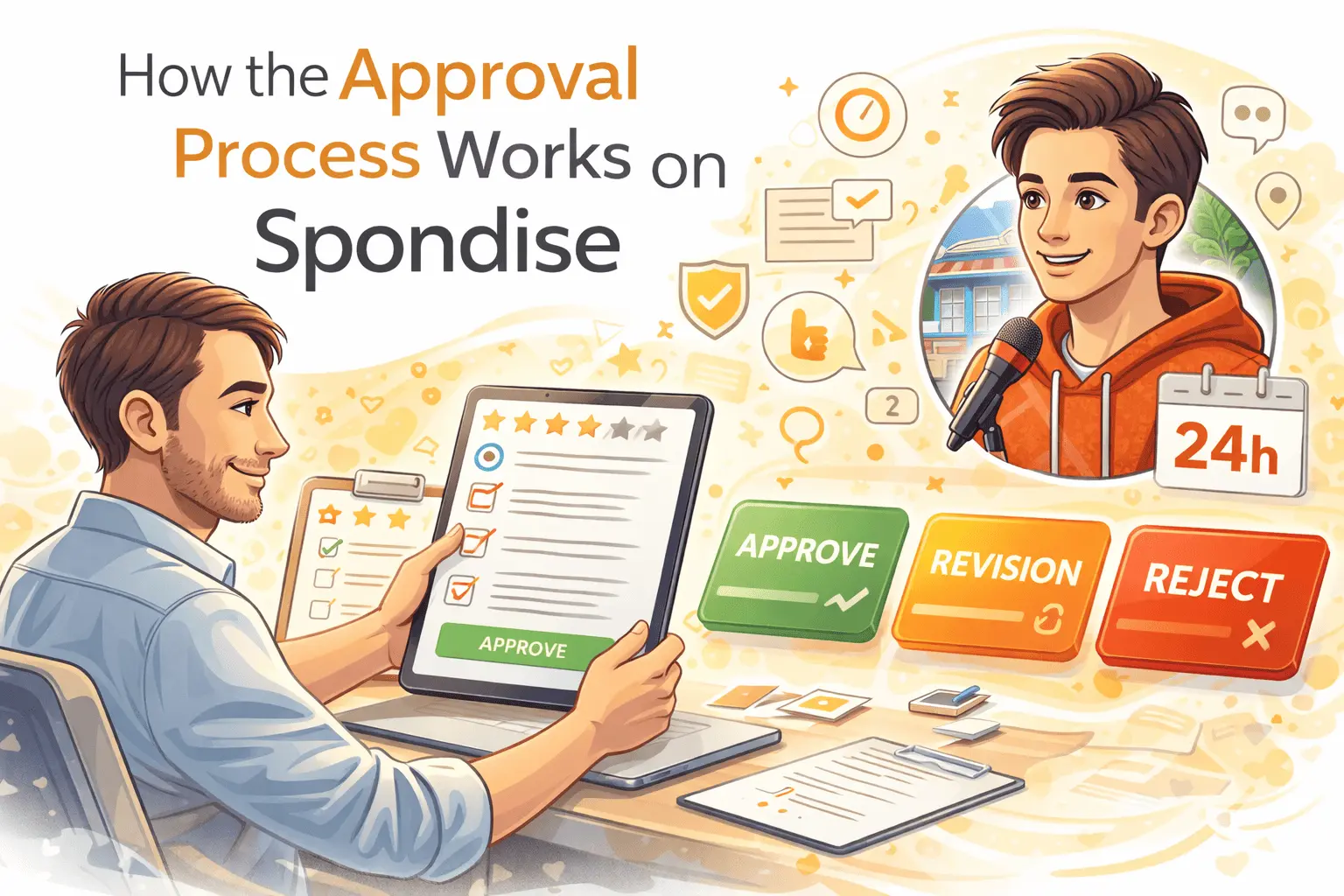
Spondise uses a structured approval workflow so Sponsors can review deliverables before anything is finalized, and Creators know exactly what is expected to get approved. This guide explains the approval steps, what each side sees, and what triggers approve, revision, or rejection—without any legal or dispute deep dives.
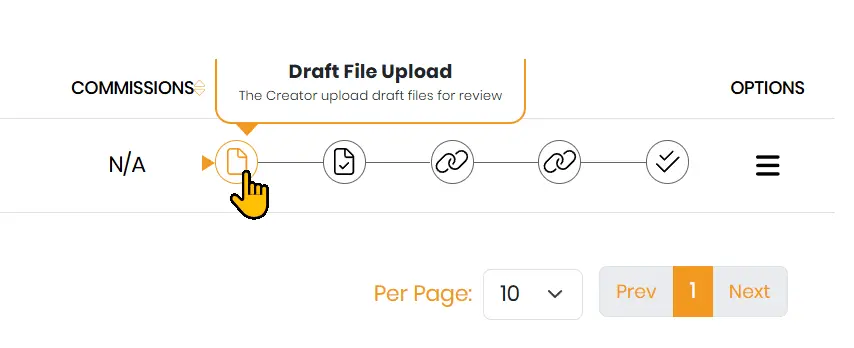
Where approvals happen: inside your contract chat under Contract Workflow.
Overview: The Two Approval Gates
- Draft Approval (pre-publication): Creator submits a draft file or draft link. Sponsor reviews and confirms.
- Final Link Approval (post-publication): Creator submits the final published post/video link(s). Sponsor confirms compliance and completes the contract.
Important: If manual review is enabled for a listing, Sponsors have a 24-hour review window. If no action is taken within that window, the step is auto-approved and the workflow moves forward.
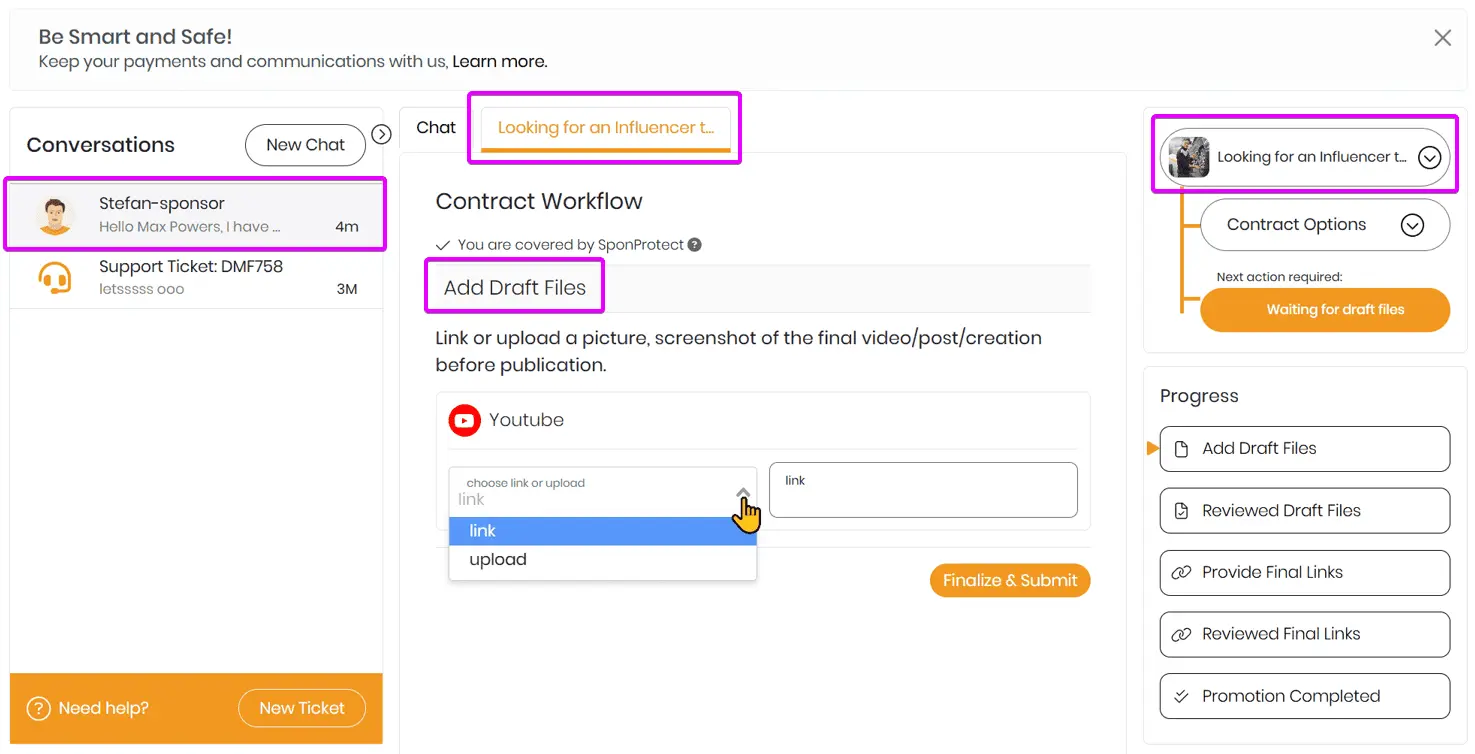
Step 1 — Creator Adds Draft Files
In the contract workflow, the Creator starts with Add Draft Files. Depending on the platform requirement (example shown: YouTube), the Creator can typically submit a link or upload a draft file or screenshot.
- Open the contract chat and locate Contract Workflow.
- Under Add Draft Files, choose link or upload.
- Submit the draft using Finalize & Submit.
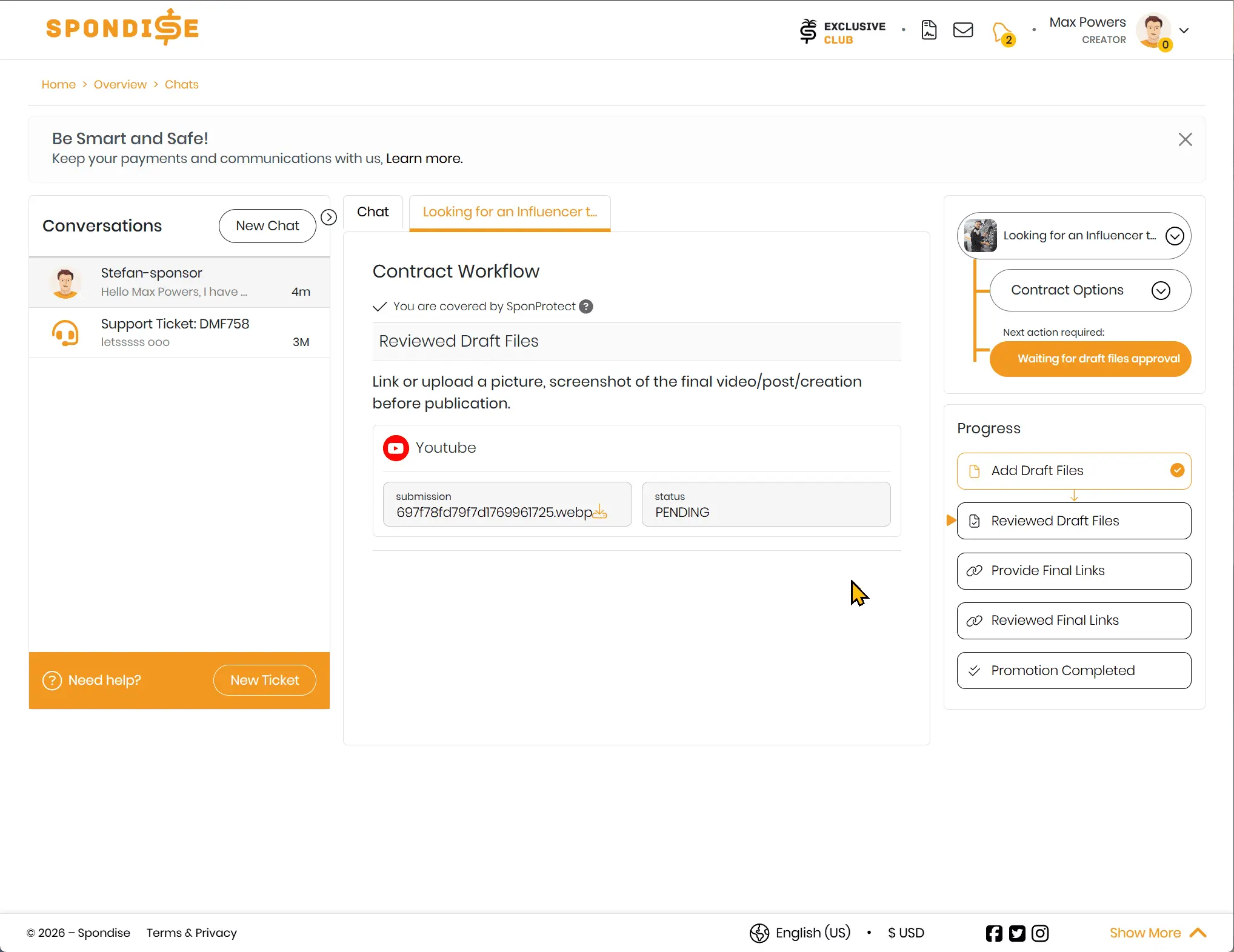
Step 2 — Sponsor Waits, Then Reviews Draft Files
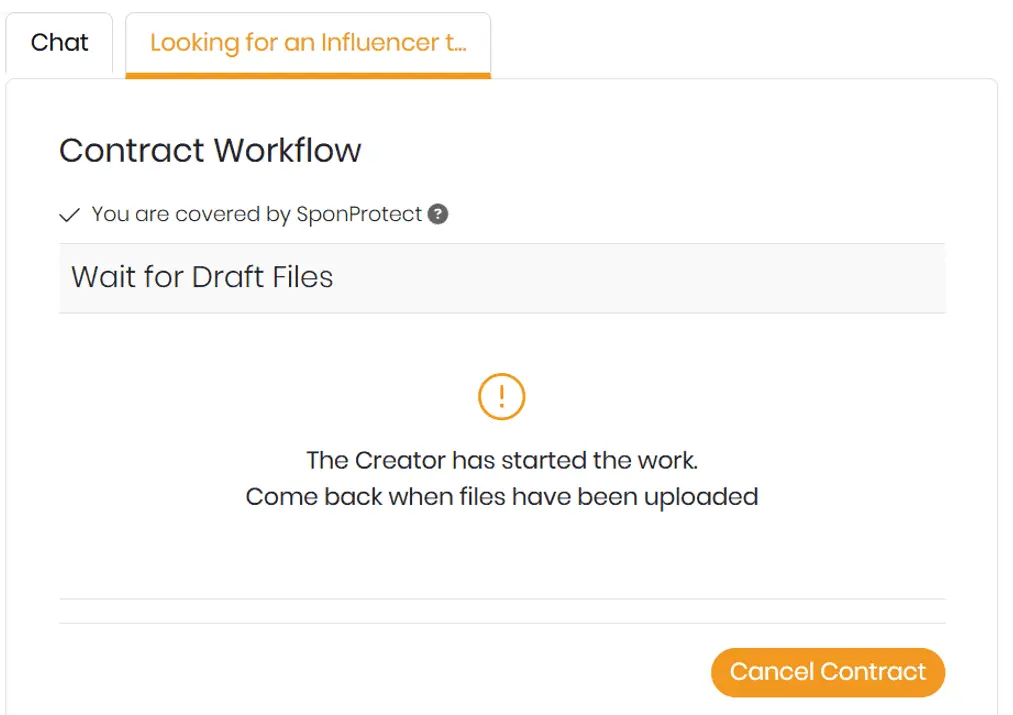
Before the Creator submits anything, Sponsors will see Wait for Draft Files. Once a draft is submitted, the contract advances to the draft review step.
Step 3 — Sponsor Approves or Rejects the Draft
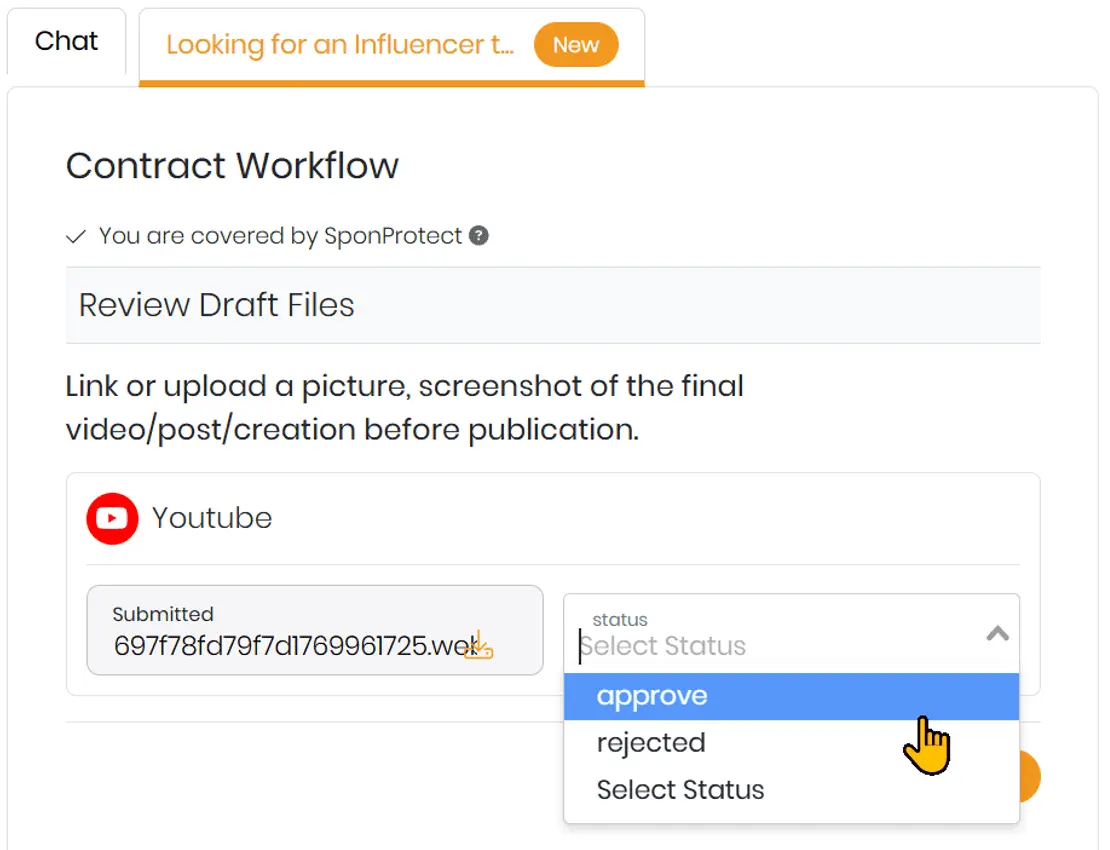
In the Sponsor view, draft review appears as Review Draft Files (or similar wording). The Sponsor selects a status for the submitted draft.
What Triggers Approve vs Revision vs Reject
- Approve when the draft matches the agreed deliverable format, includes required brand points, and meets the listing requirements (platform/type/class).
- Request revision when the core idea is acceptable but changes are needed (hook, talking points, visual framing, link placement, disclaimers, etc.).
- Reject when the submission clearly fails contract requirements or is not usable as a starting point (wrong format, missing mandatory elements, or off-scope).
Revision limit: Sponsors can request multiple revisions. There is no fixed revision count enforced by the system.
24-hour rule: If the Sponsor does not act within 24 hours (when manual review is enabled), the draft step is auto-approved and the workflow proceeds.
Finality: Once a step is approved, it cannot be reversed.
Step 4 — Creator Provides Final Links
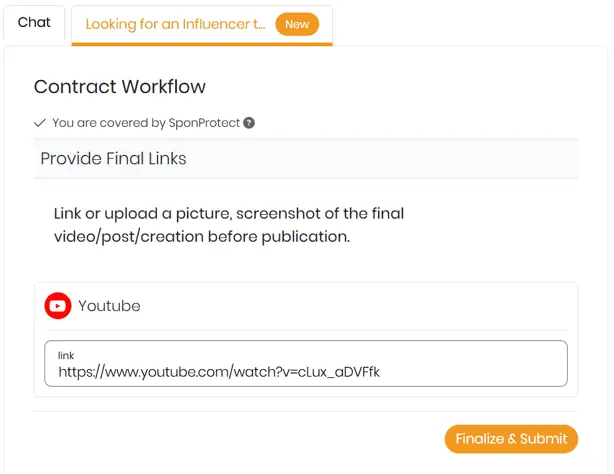
After draft approval, the Creator publishes the content (as required) and submits the final link(s) under Provide Final Links.
Step 5 — Sponsor Confirms Final Links
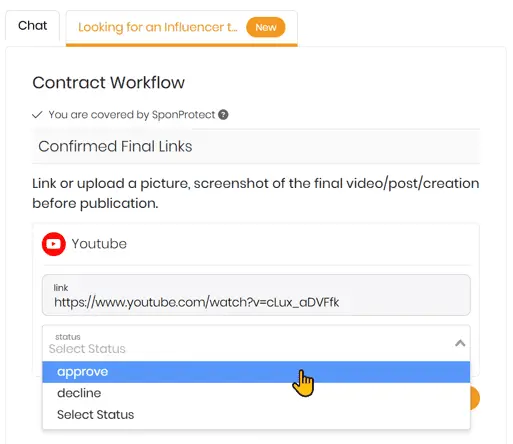
Sponsors then confirm the final links in Confirm Final Links by selecting a status (example shown: approve or decline).
24-hour rule applies here too: If the Sponsor does not act within the review window (when enabled), the final link step can auto-approve and move toward completion.
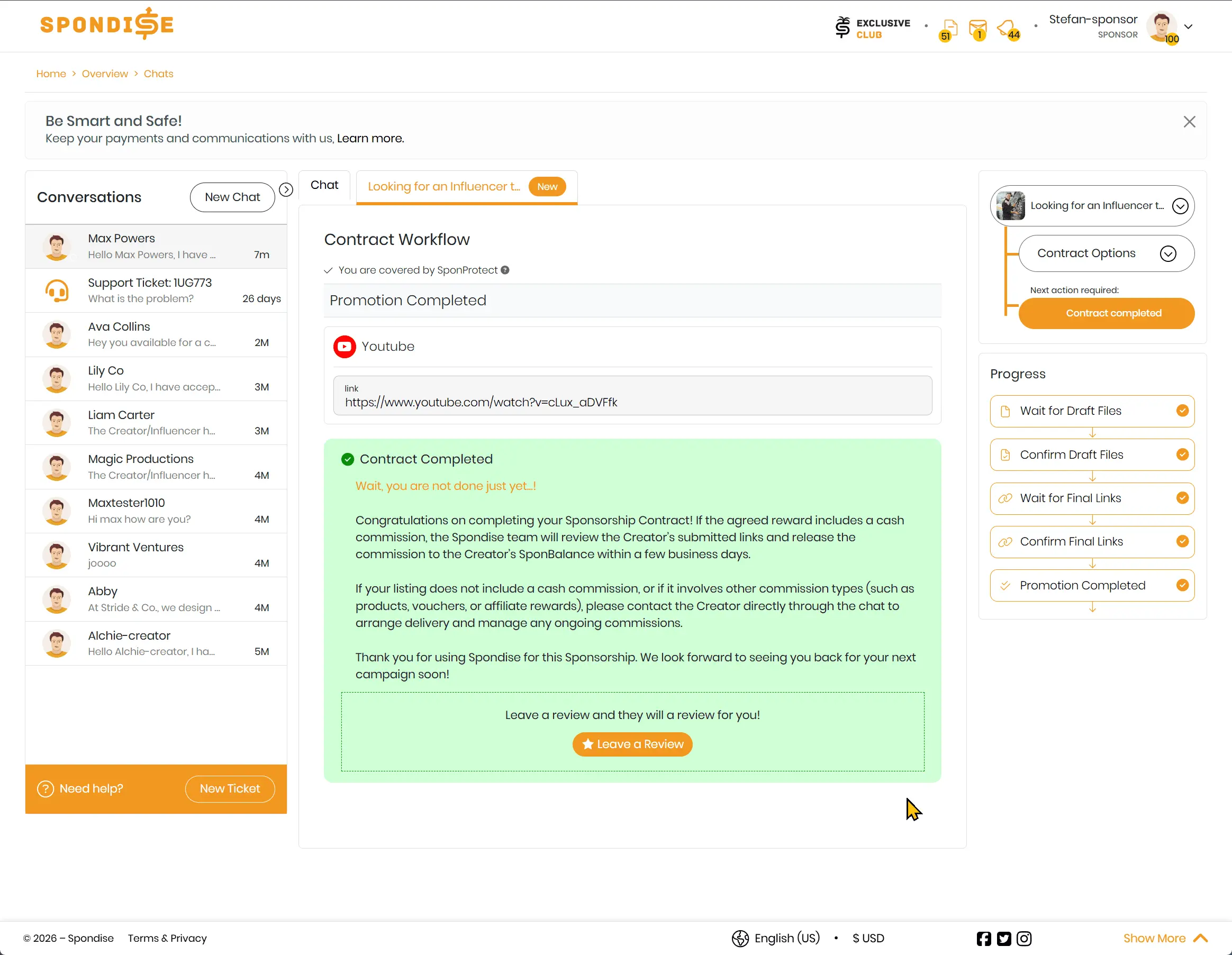
Step 6 — Promotion Completed
When final links are confirmed, the contract reaches Promotion Completed. At this point the workflow is finished, and the system guides both parties to close out the collaboration properly.
Common Approval Pitfalls (Fast Fixes)
- Draft submitted too late: agree upfront on a realistic draft time so the Sponsor can review within the 24-hour window.
- Wrong format submitted: match the listing’s required content type/class (example: Shorts vs Standard Video).
- Missing final links: publish first, then submit direct links (not profile links) so the Sponsor can verify quickly.
Learn Approval Flow
Ready to review a draft or confirm final links? Open your active contracts in your Spondise account and follow the workflow steps inside the contract chat.
Next Step (Optional)
If you want the full end-to-end context (listing → inquiry → contract → payout), read: How the Spondise Marketplace Works (End to End) .
For payment protection and trust mechanics, visit: Trust, Safety & Payments .
Share this article
Subscribe for the latest methods to improve revenue!
I am a